
RecScreen App Review: The Ultimate Screen Recording Tool for macOS
In today’s digital landscape, screen recording has become an essential tool for professionals, educators, and content creators. Whether you’re sharing tutorials, capturing gameplay, or recording webinars, having a reliable screen recording app can make all the difference. For macOS users, RecScreen has emerged as a popular choice, combining powerful features with a user-friendly interface.
Key Features of RecScreen for macOS
High-Quality Screen Recording:
- RecScreen allows users to record their screens in stunning 4K resolution, ensuring crystal-clear output for presentations, tutorials, or content creation. The app supports adjustable frame rates (up to 60 FPS), giving users control over the smoothness and quality of their recordings. For macOS users who prioritize visual fidelity, this is a major plus.
Customizable Recording Options
- Selective Recording: Users can choose to record the entire screen, a specific window, or a custom region.
- Audio Integration: Record system audio, microphone input, or both, making it perfect for voiceovers or live commentary.
- Hotkeys for Efficiency: Set up custom keyboard shortcuts to start, pause, or stop recordings with ease, streamlining workflows for multitaskers.
Built-In Editing Tools:
- Unlike some macOS screen recorders, RecScreen includes a lightweight yet effective video editor. Trim clips, cut out unwanted sections, add text annotations, or insert timestamps—all within the app. This eliminates the need for external editing software, saving time for users on the go.
Privacy & Security
- RecScreen emphasizes user privacy, offering encrypted file storage by default. For businesses or individuals handling sensitive data, this feature ensures recordings remain secure, both during and after the capture process.
Seamless File Management
- The app auto-organizes recordings in an intuitive library, complete with titles, timestamps, and thumbnails.
- Export options include MP4, MOV, and GIF formathttps://gemini.google.com/apps, with the ability to share directly to cloud services like Dropbox or Google Drive.
User Experience: Simple and Intuitive
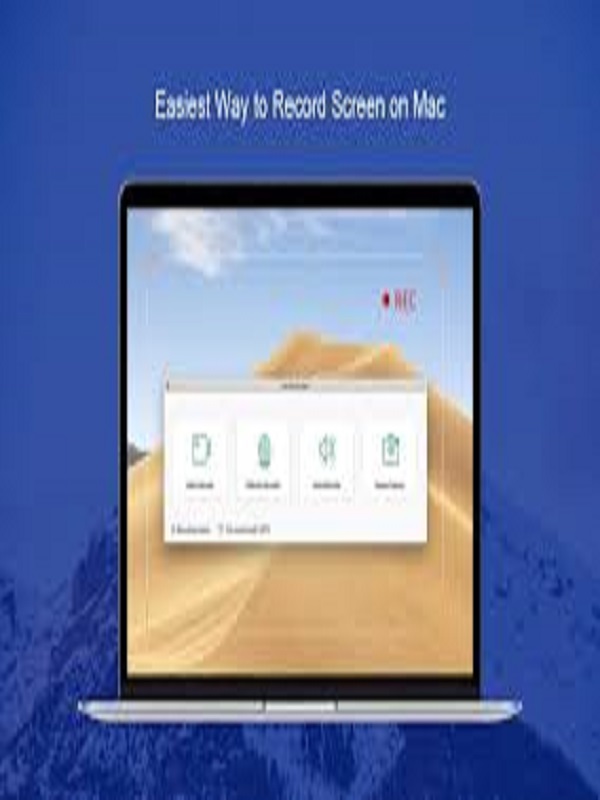
RecScreen’s interface is clean and minimal, avoiding the clutter often seen in other screen recording apps. Even for macOS beginners, the setup process is straightforward: select a recording area, adjust audio settings, and hit record. Advanced users will appreciate the app’s flexibility, such as the ability to adjust bitrates or enable GPU acceleration for smoother performance during long recordings. One standout feature is the real-time preview panel, which lets users monitor their screen, audio levels, and recording timer simultaneously. This reduces the chance of technical hiccups and ensures a polished final product.
How Does RecScreen Compare to Competitors?
While macOS has built-in screen recording tools like QuickTime, third-party apps like Loom or OBS Studio often require a steeper learning curve or compromise on simplicity. RecScreen strikes a balance, offering: More control than QuickTime (e.g., advanced editing, hotkeys). A lighter footprint than OBS, yet packed with professional-grade features. For users who want to avoid bloatware, RecScreen’s streamlined design is a breath of fresh air.
Who Should Use RecScreen?
- Educators: Create instructional videos with ease.
- Gamers: Capture gameplay without lag.
- Remote Workers: Record webinars or screen demonstrations for clients.
- Content Creators: Produce polished tutorials or social media clips.
Final Verdict:
RecScreen is a versatile, no-nonsense screen recording app that delivers on its promises for macOS users. Its blend of high-quality recording, intuitive design, and privacy-focused features makes it a top contender in a competitive space. Whether you’re a professional, student, or casual user, RecScreen simplifies the process of creating and sharing screen content. Ready to elevate your workflow? Try RecScreen today and see why it’s fast becoming a favorite among macOS users.
You can also check the latest article on Getmacos