
Disk Map for Mac: Visualize & Reclaim Storage (2026 Review)
The Storage Dilemma on Your Mac In an era where digital files—photos, videos, downloads, and apps—multiply faster than we can delete them, storage space on our devices feels like a finite resource. macOS users often face this challenge, especially with newer Macs packing SSDs that, while fast, can fill up quickly. While macOS offers basic storage management tools, they lack the intuitive, visual depth many users need to identify and reclaim wasted space. Enter Disk Map: Visualize Disk Usage for Mac—a powerful, user-friendly solution that turns the chaos of storage management into a visual adventure.
Why macOS Needs a Visual Storage Tool
Apple’s built-in storage management tools are functional but basic. For instance, the “About This Mac” storage tab shows a breakdown by category (Documents, System, Other), but it doesn’t pinpoint where the space is going. Third-party tools like DaisyDisk and GrandPerspective attempt to fill this gap, but many users find their interfaces outdated or cluttered. That’s where Disk Map: Visualize Disk Usage Download macOS shines.
What is Disk Map?
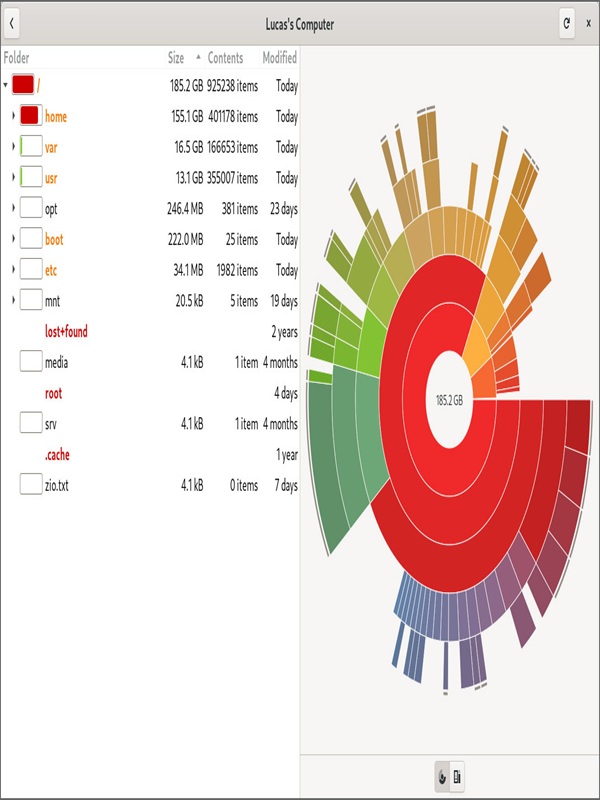
Disk Map for macOS is an application designed to visualize disk usage through an interactive, color-coded sunburst chart. Imagine a pie chart turned up to 11: each slice represents a file or folder, with larger slices indicating bigger files. This visual approach makes it effortlessly clear what’s consuming your storage. Here’s why it’s a standout choice:
Key Features of Disk Map
- Sunburst Visualization: At first glance, the app displays your entire disk as a vibrant sunburst, with each segment representing a file or folder. Color-coding distinguishes between file types (e.g., documents in blue, videos in red), making it intuitive to spot large, unnecessary files.
- Deep File Analysis: Click on any segment to drill down into subfolders. Disk Map shows file sizes in real time, helping you identify, for example, a 50GB video project buried in your Documents folder.
- One-Click Cleanup Tools: Right-click any file or folder to delete, compress, duplicate, or export it. The app integrates seamlessly with macOS, so files moved to the Trash are handled just like any other.
- Custom Scans and Exports: Focus on specific drives or directories (e.g., your Downloads folder) by selecting them before scanning. You can also export the disk map as an image for reference.
- Lightweight and Fast: Disk Map uses minimal system resources, even when scanning massive drives. Scans are quick, and the interface remains responsive—ideal for Macs with limited RAM or CPU power.
How to Use Disk Map: A Quick Tutorial
- Select Your Drive: Launch the app, and choose the drive (e.g., Macintosh HD) you want to analyze.
- Scan and Explore: Click “Scan” to generate the sunburst chart. Use the sidebar to toggle between drives or folders.
- Identify Space Hogs: Look for large, colorful slices. A 10GB folder of old downloads? A 20GB cache from a game? Disk Map makes them impossible to miss.
- Clean Up: Right-click to delete or archive unnecessary files. The app even helps you compress files to save space.
Disk Map vs. the Competition
DaisyDisk: While Disk Map and DaisyDisk are the most direct competitors, Disk Map’s vibrant visuals and sub-second navigation feel more modern. DaisyDisk’s interface, though functional, lacks the same polish. GrandPerspective: An older, free tool with a dated, Windows-like interface. It’s a good free alternative but lacks Disk Map’s sleek design and macOS integration.
Pros of Disk Map:
- Beautiful, interactive visuals. Lightweight and fast scans. Built-in cleanup tools for instant results.
Who Should Use Disk Map?
- Casual Users: If you’re struggling to find 100GB for a new app or photo backup, Disk Map’s intuitive design makes optimization easy.
- Tech-Savvy Mac Users: Perfect for those who want to stay on top of disk health and avoid the “Where did my storage go?” panic.
- Content Creators and Developers: Ideal for managing large media files, project folders, or caching data.
Final Verdict: Is Disk Map Worth It?
Disk Map: Visualize Disk Usage is more than just a storage tool—it’s a visual masterclass in finding and eliminating digital clutter. Its combination of aesthetic design, functional depth, and macOS integration sets a new standard for disk management on the platform. While it’s an investment compared to free tools, the time and stress it saves (not to mention the reclaimed storage) make it a steal. If you’re a macOS user drowning in storage chaos, Disk Map is the compass you need to navigate the mess and reclaim your space—with a side of color-coded elegance. Ready to Transform Your Mac’s Storage
You can also check the latest article on Getmacos