
A Complete Guide to Automating Your Mac with Hazel
If you use a Mac, you probably know about the many automation tools that are available for the platform. Hazel is one of these tools that has become more popular in the last few years. It is a powerful and easy-to-use automation program that may help you organise your work and make your digital life easier. We’ll go into great detail about Hazel Download for macOS
What is Hazel?
Noodlesoft made Hazel for Mac, a macOS program that lets users automate several chores and processes on their Mac. The program keeps an eye on and controls files, directories, and other system events using a simple, rules-based framework. You can use Hazel to make your own rules that let you do a lot of different things, from organising files to setting up complicated processes that use more than one app or service.
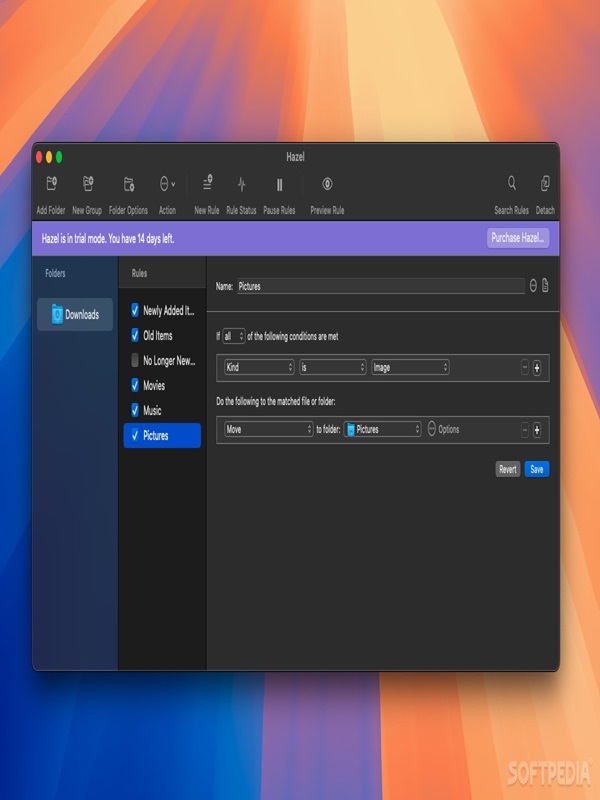
Hazel’s Most Important Features
So, what is it about Hazel that makes her so strong? Some of its most important aspects are:
- File Management: You can use Hazel to make rules that sort files by things like file type, size, date modified, and more. You can use these rules to put files in folders, get rid of items you don’t want, or even upload files to cloud storage services.
- Folder Watching: Hazel can keep an eye on certain folders on your Mac and let you know when new files are added or changed. This capability is quite helpful for things like automatically sorting, labelling, or converting files.
- Support for AppleScript and Shell Script: Hazel works with both AppleScript and shell scripts, so you can make complicated workflows that work with other apps and services.
- Integration with Notification Centre: Hazel may send notifications to your Mac’s Notification Centre to let you know when tasks are done, when there are issues, or when other critical events happen.
- Hazel’s UI is very customisable, so you can make a workflow that works best for you.
Hazel in Action in the Real World
Here are some real-world examples that will help you understand what Hazel can do:
- Automatic File Organization: Set up a rule to send new PDFs from your Downloads folder to a specific “PDFs” folder so you can easily find and manage them.
- Set up a rule to automatically resize and convert incoming photos to a certain format so that they are ready to be used in your favourite design tool.
- Backup and Sync: Use Hazel to automatically back up your key files to an external drive or cloud storage provider. This will keep your data safe and up to date.
- Music Library Management: Set up a rule that will automatically add new music files to your iTunes library, along with tags, artwork, and playlist organization.
How to Start Using Hazel
It’s easy to get started with Hazel if you haven’t used it before. Here’s a guide that will help you get started:
- Start Hazel: After you install it, open Hazel and look around the UI.
- Make a New Rule: To make your first rule, click the “New Rule” button. Pick a trigger, such as “File Added,” and tell Hazel what to do and under what circumstances.
- Test and Improve: Test your rule and make any necessary changes to make sure it’s working as it should.
In conclusion
Hazel is a very useful and effective automation program that can help you work more efficiently, make your digital life easier, and get more out of your Mac. Hazel is the best choice for anyone who wants to automate boring operations or make complicated processes because it has an easy-to-use interface, customisable rules, and works with AppleScript and shell scripts. Hazel is absolutely worth a look if you want to be more productive, are a creative professional, or just want to make your life easier as a Mac user.
You can also check our latest article on GetmacOS