
A Complete Guide to Multitouch Programs on macOS to Improve Your Workflow
If you’ve ever been amazed at how easy it is to do multiple things at once on macOS with just a few finger swipes, you’ve experienced the magic of Multitouch gestures. These movements are meant to make your job easier by letting you swipe between apps and pinch-zoom. macOS has a lot of built-in gestures, but third-party Multitouch for Mac tools let you customize them even more. They can turn your trackpad or Magic Mouse into a productivity powerhouse. In this essay, we’ll go into great detail about these tools, what they can do, and how to use them to get the most done.
Multitouch gestures that come with the device vs. those that come from a third party
Built-In Gestures
You may find many default Multitouch gestures in macOS by going to System Settings > Trackpad/Mouse. These are:
- Swipe between desktops
- A look at Mission Control
- Access to the launchpad
- Zoom in and out
These motions are easy to understand, but they are limited in what they can do and can’t be changed for special uses.
Third-Party Multitouch Programs You may add more features to your computer with tools like BetterTouchTool (BTT), Trackpad++, and Gesture Control (for external mice). For instance:
- Make gestures that work just with certain apps, like a three-finger tap that opens a terminal in VS Code.
- Give complex tasks to people, like starting keyboard shortcuts or scripts.
- Connect to outside gear like drawing tablets or the Apple Pencil.
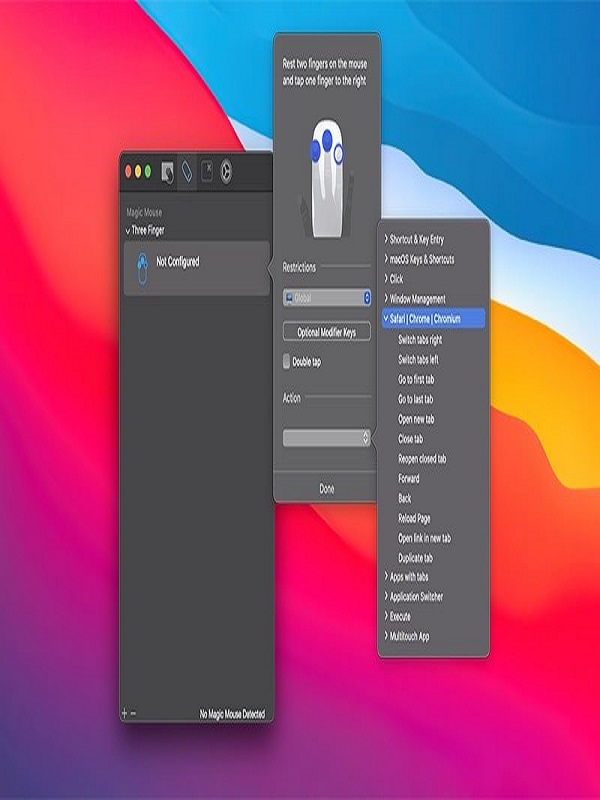
Why should you use a program that supports multitouch?
This is where the true magic happens:
- Customization: With support for gestures, clicks, and even bespoke touch areas, you can unlock more than 500 gestures and actions (BTT).
- Increase productivity by automating operations that you do over and over again. For example, you can move windows with a two-finger drag without a window manager.
- Personalization: You can change gestures to fit your work style, whether you’re a designer, developer, or writer.
Step-by-Step: How to Set Up BetterTouchTool (Example)
First, open BTT. It will find your input devices and ask you to set them up.
Change Gestures:
- Press Keys and Click
- Add a new gesture, such as swiping up with three fingers.
- Give an action, such as opening a certain app or starting a keyboard shortcut.
- Per-App Presets: To launch the terminal in VS Code, set it to open with a two-finger tap. In Photoshop, set a gesture to copy a layer.
- Save and Test: Turn on your new gesture and change the sensitivity, delay, or modifier keys.
- Use Macros to link actions together (for example, zoom in, take a screenshot, and then copy the picture to the clipboard).
How to Use It in Real Life
- Graphic Designers: In Adobe Illustrator, you can rotate a canvas without going through menus by swiping with four fingers.
- Developers: Give a gesture to GitHub to commit code, switch between terminals, or start a build script.
- Remote Workers: Make a “Meetings Mode” motion that will mute your mic, turn off notifications, and start your meeting app with just one flip.
- These technologies cut down on the time you spend interacting with others so you can focus on your work.
Ways to Get the Most Done
- Keep it simple: Too many gestures can make things hard to understand. Put 5–7 high-impact actions at the top of your list.
- Add Command, Shift, or Control to motions to tell them apart (for example, Ctrl+3-finger swipe vs. 3-finger swipe).
- Use Presets: Add gesture sets that other people have contributed for apps like Slack, Zoom, or Chrome.
- Try it out on different devices: Make sure that your motions function on your trackpad, Magic Mouse, and Magic Trackpad.
Limitations and Other Options
- System Requirements: Most Multitouch programs need macOS 10.13 or later. Newer versions work with M1 and M2 Macs.
- Learning Curve: It takes time to get good at custom gestures. Begin with the settings, then look at the more complex options.
Other options:
- BetterTouchTool has more complex programming, but Trackpad++ is easier to use for keyboard shortcuts.
- Karabiner-Elements is great for changing the functions of keys and mouse buttons.
In conclusion
Multitouch gestures are more than just a nice feature; they make macOS work better. You can make your trackpad more useful by using third-party applications like BetterTouchTool. These tools let you customize it in ways that make it a productivity hub. These tools should be in any creative’s toolbox, whether you’re automating tasks or just making it easier to find things in menus.
You can also check our latest article on GetmacOS