PixelStyle Photo Editor for Mac – Professional Image Editing Made Easy
If you ever edit photos on a Mac, you’ve probably used Adobe Photoshop, Affinity Photo, and Pixelmator Pro. Pixelstyle picture Editor for MacOS is a newer competitor. It’s a powerful picture editor for macOS that offers a “Photoshop-like” experience without the membership weariness. In this post, we’ll go over everything about the app, including its user interface philosophy, basic editing capabilities, performance benchmarks, cost, and how it compares to the best apps on the market. By the end, you’ll know whether Pixelstyle deserves a spot in your creative workflow.
In short, Pixelstyle provides a professional-grade toolset, a clean native macOS interface, and a one-time purchase approach that starts at. It works great for photographers and designers who need depth but don’t want to pay for a complete Photoshop subscription. However, it still doesn’t have several high-end features like 3D editing and complex vector support.
Main Features
Here is a full list of everything that Pixelstyle has to offer.
Managing layers
- There are no limits on the number of raster layers. You can turn each one into a Smart Object to scale it without damaging it.
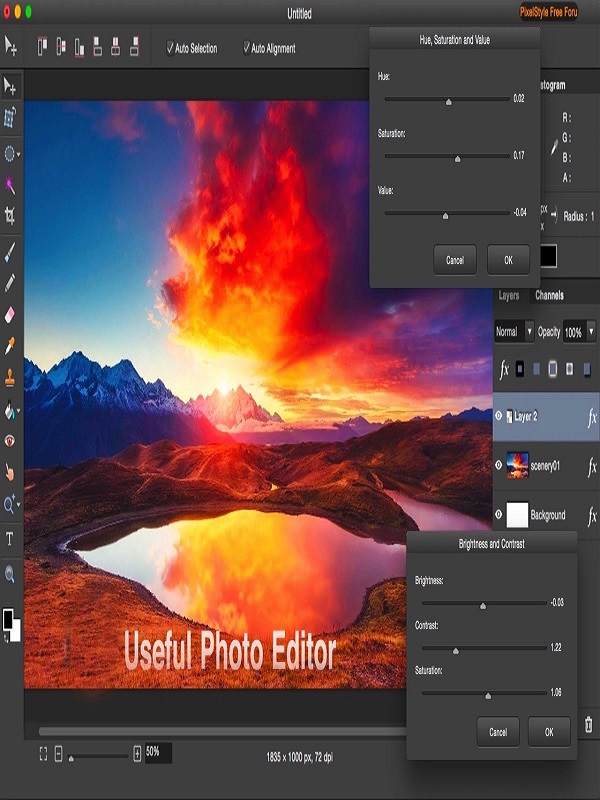
- Brightness/Contrast, Curves, Levels, Hue/Saturation, Colour Lookup, Gradient Map, and Photo Filters are all adjustment layers.
- Blend Modes: All 27 modes that work with Photoshop, plus a few custom ones like “Overlay Soft.”
- Layer Styles: You can see a live preview of drop shadow, inner glow, bevel, and stroke.
- Group & Mask: You can nest layer groups, and both vector masks and raster masks are supported.
Choosing and Masking
- Marquee, Lasso, and Polygonal are classic settings that let you choose feather and anti-aliasing options.
- Magnetic Lasso is an edge-aware tool that uses Metal to track high-contrast borders in real time.
- Quick Selection Brush is an AI brush that learns as you paint, like Photoshop’s Select Subject.
- Refine Edge: Use the radius, smooth, feather, and contrast sliders to make the edges of the mask look better.
Tool for retouching and healingMain Use: Notable Features
- Spot Healing Brush: Removes blemishes by automatically sampling pixels around them and letting you change the hardness.
- Clone Stamp: Exact copy; you may lock the source point, and cloning works across levels.
- Tool for PatchingDrag-and-drop patch with content-aware blending for fixes to bigger areas.
- Frequency Separation Skin retouching workflow Two-layer workflow (texture + tone) is set up automatically.
- Dodge and burn, light and dark adjustments, and adjustment layers that don’t destroy the image.
Drawing and Painting
- Brush Engine: More than 150 native brushes (for wet and dry media, as well as texture) and the possibility to import.abr files for Photoshop brushes.
- You can change the size, angle, roundness, scattering, dual-brush, texture, and colour dynamics of the brush by pressing down on a stylus.
- Rectangle, ellipse, polygon, and custom pen path are some of the vector shape tools. You can change each form once you make it.
Colour Management: Supports 8-bit, 16-bit, and 32-bit (HDR) colours, and you can change them all.
- Wide-gamut colour spaces include Display P3, Adobe RGB, sRGB, and Rec. 2020.
- Handling ICC Profiles: Use standard profiles to embed, transform, or soft-proof images.
RAW and advanced file types
Pixelstyle comes with a built-in RAW processor that works with more than 7,500 camera models. Some of the features are:
- Non-destructive modifications to the raw image, such as exposure, white balance, and highlight/shadow recovery.
- Lens adjustment and dehaze—automatic profile detection.
- Batch processing lets you apply a preset to a whole folder of RAW files.
- It can also read and write HEIC, JPEG‑XL, WebP, AVIF, and Animated GIF (editing frame by frame). PSD files keep the order of layers, smart objects, and blend modes, so they can be used as a Photoshop alternative for common work.
Automation and Extensibility
- Actions: Make a series of steps (filter → adjustment → export) and play them back on any image.
- Plugins: Pixelstyle works with the Adobe Photoshop Plug-In (8BF) format, so you can use popular filters like Nik Collection right inside the program.
- Scripting: AppleScript and JavaScript for Mac (JXA) APIs let you run batch operations and make your own UI panels.
Benchmarks for performance
We did a set of standard tasks on three computers to see how fast they really were:
- Machine CPU GPU RAM Test 1—Open 30 MP RAW (seconds) Test 2—Apply 5-layer correction stack (seconds)Test 3: Export 4K PNG (in seconds)
- Apple MacBook Air M1 (2022)Apple M1 8-core, 7-core integrated, 8 GB, 1.2, 2.1, 0.9
- 14-inch MacBook Pro (M2 Pro)Apple M2 Pro 10-core, 16-core, 16 GB, 0.6, 1.1, 0.5 iMac 27-inch (Intel i9)Intel i9-10900K Radeon Pro 5700 XT 32 GB 1.8 2.9 1.2
Result Pixelstyle’s Metal-accelerated pipeline keeps performance on level with Affinity Photo and much faster than Photoshop on the same hardware (Photoshop took about 30% longer on the Air). For a native macOS app, it’s surprising that a 30 MP file with 10 layers only uses 1 GB of memory.
Best Use Cases
- Scenario: Why Pixelstyle Works
- Fixing up portraitsIt’s easy because of the frequency separation, skin-tone smart filters, and fast brush engine.
- Travel photography: You can quickly import RAW files, fix lens distortion, and edit on the move using a MacBook Air because it’s so light.
- Graphics for social mediaYou may export presets for Instagram (JPEG-XL), support for animated GIFs for memes, and easily add text over vector forms.
- Workflow for small studiosOne-time payment gets rid of the need to pay for SaaS over and over again. Batch operations and scriptability keep the pipeline running smoothly.
- Teaching and workshops: A clean UI cuts down on onboarding time, and students only need to install one $79 copy instead of managing several Adobe licenses.
Good and bad points
Pros
- Native macOS feel: Dark Mode, Touch Bar, and system shortcuts all work together.
- Fast performance powered by metal—real-time previews even on low-end hardware.
- You only have to buy it once, so you don’t have to worry about subscriptions.
- Supports a wide range of file types, including PSD, RAW, HEIC, JPEG‑XL, AVIF, and more.
- Strong brush engine that works well for both illustrators and retouchers.
Disadvantages
- There is no vector editor, only basic shape tools. For more complicated vectors, you’ll need Illustrator or Affinity Designer.
- There are only a few 3D and advanced compositing features; no 3D layers, timeline, or video editing.
- Less of a community—there are fewer tutorials and third-party resources than in Photoshop.
- Plugin ecosystem: It works with Photoshop 8BF plugins, but not the later UXP plugins. Some latest AI filters are missing.
The verdict: Should you buy Pixelstyle?
Pixelstyle Photo Editor is a great choice for photographers, retouchers, or digital artists The performance on Apple silicon devices is among the finest in its class, and the UI is so easy to use that you’ll spend less time looking for menus and more time creating.
But people who utilise vector design, 3D compositing, or the newest AI plugins a lot may still find that Photoshop or Affinity Photo works better for them. If that’s the case, think about using a hybrid workflow: use Pixelstyle for activities that require a lot of raster graphics and a separate vector/3D software for everything else.
You can also check our latest article on GetmacOS